Digital reading and studying – teachers are students too…

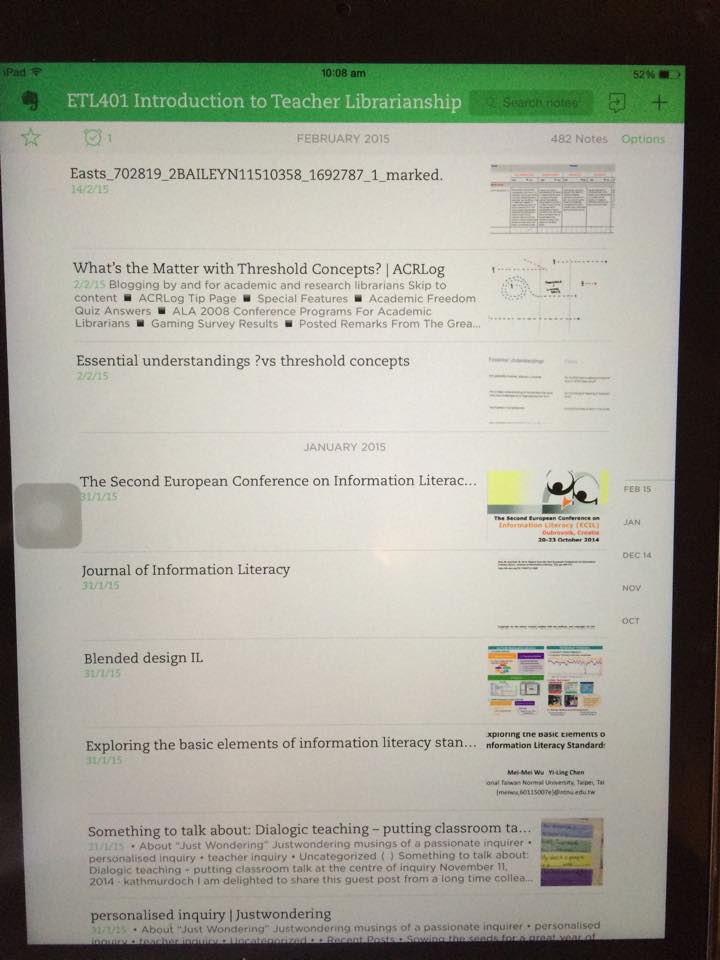
Last night I saw a flurry of posts on one of my Facebook groups – the one with teachers who are students, often back to school after a gap of years or even decades.  That was me 30 months ago.  Yes I had spent two years studying Chinese at HKU more recently, but that was a more hands / ears / body on task physical exercise than the more recent CSU experience of first doing my MIS and now my M Ed (KNDI).  I promised if I had time after my assignment for today, I’d post a little about how I manage using a combination of paper, coloured pens and Evernote to keep on top of my reading and modules.  I’ve written briefly about using tools to organise one’s studying, an article in Incite which unfortunately wasted too much space on a picture of me in lieu of what I wanted, which was screen shots of how to do stuff. At some point I’d like to do some screen casting of how this all works in reality, but since I’m moving house next week, I just don’t have the time to edit it down to something quick and slick and presentable!

Here is a step by step account of what I do (CSU resources, plus Evernote Premium (paid) plus Zotero (free) plus Word for Mac 2011 and a desire to print as little as possible):

1. Open a new notebook in Evernote for my new course

As you can see here my whole life is on Evernote – personal, professional and learning, each have their own notebook. You can also group notebooks together (I’ve put all my CSU courses into the CSU group, although I keep my most current course floating as it’s then easier – less clicks) to add to the notebook.  Because Evernote is so wonderfully searchable, there is no need to file by module or topic, you can just tag notes if you want, or not.Screen Shot 2015-03-15 at 5.05.43 pm


2. Go into the modules and download the Subject Overview and individual Modules

I then go into Interact (2) and download the subject overview and individual modules and save as PDF files. I also print these, single sided and file them.  This is the only printing I do during the course.  It was not always so, but I couldn’t stand the waste of paper and needed a more efficient way!

Screen Shot 2015-03-15 at 5.30.20 pm


I put all the module pdf’s onto my desktop and then drag them into my Evernote Notebook.  I also have the Evernote app on my iPad, and I make sure that at the end of each day I synchronise between my laptop and my iPad so that they’re both current.  Because I have Evernote premium I can read all my notes OFFLINE – very important to me, as I don’t have 3/4G on my iPad, only Wifi, and I don’t always have Wifi in the places I’m snatching moments of study!

3. Find the Schedule and put the dates into your physical / virtual calendar with reminders!

4. Start populating Evernote with everything you need to read

I usually take a moment when I’m tired and want to feel productive but I just don’t have the energy to do hard thinking or reading or writing work. I open the modules and start clicking on every link.

Screen Shot 2015-03-15 at 5.31.37 pm


Then I do the following:

Journal Articles

Go to Primo, find the article, save / download as a PDF (I just tag it and dump it on my desktop).

Screen Shot 2015-03-15 at 5.32.05 pm


At the same time find the “cite / export citation” button and save the citation in the format you need for your citation tool (I use Zotero, so it is a RIS file.

Screen Shot 2015-03-15 at 5.32.23 pm Screen Shot 2015-03-15 at 5.32.35 pm Screen Shot 2015-03-15 at 5.32.45 pm


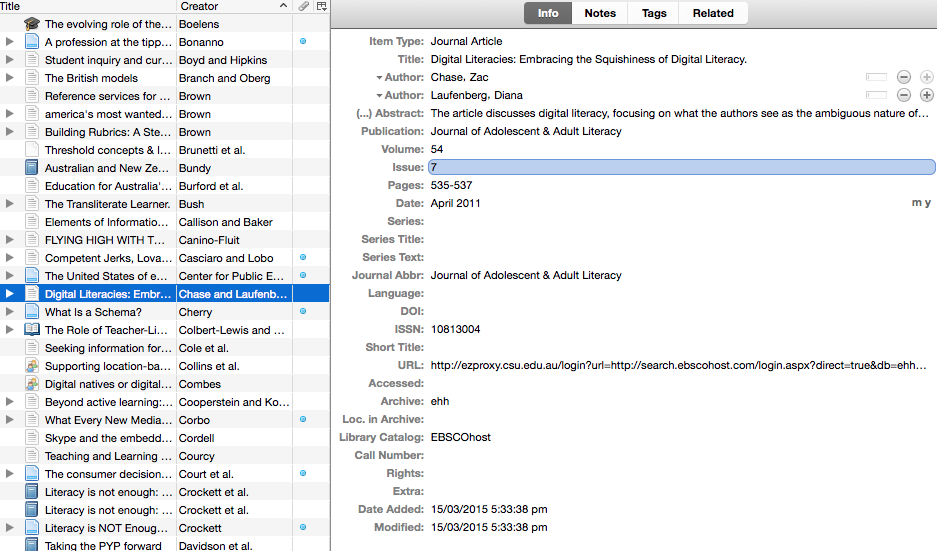
In Zotero I open a new collection

Screen Shot 2015-03-15 at 5.26.30 pm


And then I import the
“RIS” file into Zotero, (just need to click on it, with Zotero open on the correct collection) making sure all the files are completed correctly.
Screen Shot 2015-03-15 at 5.33.24 pm


Screen Shot 2015-03-15 at 5.33.56 pm


Websites

For websites, I use the Evernote Addon, so I just need to click on it, and I can save the article / site onto Evernote into whatever notebook I choose:

Screen Shot 2015-03-15 at 5.51.53 pm

I


In order to save the citation, I right-click in order to activate the Zotero addon, which will save the URL and any correctly coded information (usually this is not much, only URL and title – so you need to manually put in the author, date, website name, etc. to ensure a coScreen Shot 2015-03-15 at 5.08.08 pmrrect citation)


I repeat this process for eBooks (“print” the relevant chapter to PDF, put the ISBN into the Zotero wizard), and other material. You can save the links to YouTube and Vimeo videos, I’ve not bothered to put them in Evernote – I try to watch them on my laptop – if anyone has a good solution for that besides downloading and taking up a lot of memory to watch offline

I then have a desktop littered with lots and lots of pdf files, and I then just drag and drop the lot into the correct notebook.


5. Sync Evernote on iPad to Laptop

Because I’m working and a mother and taxi-driver, I spend quite a bit of “lost” time waiting for kids at sports or picking them up etc. Often I then don’t have access to wifi.  I’ve paid for the premium version of Evernote for this reason.  In any event, with or without wifi, my way of studying is then as follows (obviously this is personal).

Screen Shot 2015-03-15 at 5.07.16 pm

evernote1

I will add another few things about Evernote. It is very collaborative. So you can share notebooks with fellow Evernote users. If you get yourselves organised you can share who collates the information for which module and set up a group. Or ask a fellow student who has done the course already … but please consider academic honesty, plagiarism, digital citizenship and all that when you do these things.

6. Start reading and reflecting

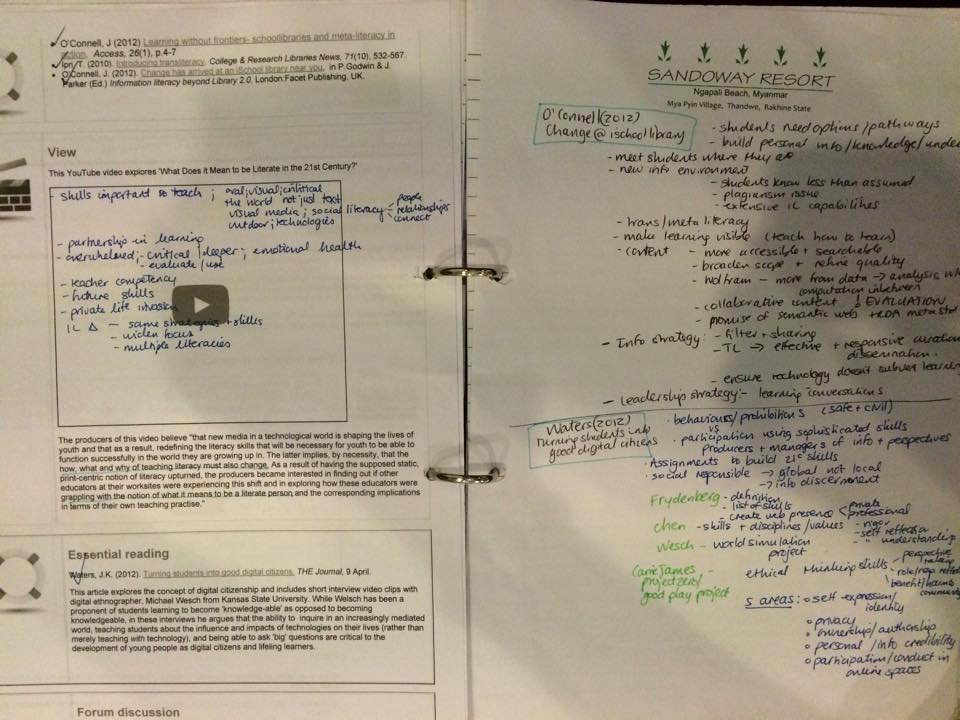
I take the next chunk of work I need to do and put the printed out modules in front of me. As I read the module, I tick the paragraphs.  When I get to a reading, I will then open the reading in Evernote ( the search function is amazing) and start reading. As I read, I take notes on the blank left hand side of the module so it is opposite to where it is referred to in the module. I’ve made a personal convention for my note-taking. I do it in blue or black and put references to people and other readings in green and important items that I’ll want to refer to later in my assignments or blog posts or think more about in red.  This is what it looks like (If I’ve printed the modules double sided, I put my notes on other paper as close to the module where it is referred to as possible).  I don’t skim much to be honest, but some articles / book chapters etc. merit more note taking than others. Some are just a repetition and some are gold mines.
notetaking2notetaking


7. Writing an assignment

When it gets to writing an assignment I just glance through my modules and find the relevant sections / key words. I then glance at my notes and focus on the purple / green bits. I look for more articles in Primo by referring to the authors who have written on the subject and are frequently mentioned.  I also “file” those articles into Evernote and the citations into Zotero as I collect them.

When I’m writing, I try to plan out what I want to say, and then I will try and find research to back it up. Because Evernote is so searchable, I can search on key phrases or words or combinations of words and get a listing of all the articles they appear in. I can then quickly scan these and see if they are worth citing.

Since Zotero has a word add on, I just have to Click on “insert citation” and it jumps into Zotero

Screen Shot 2015-03-15 at 6.14.32 pm


I can then choose the author / article title and decide whether it is a direct quotation (add the page or paragraph number) and how I’m going to cite (author, date); author (date); author …. (date) etc.

Screen Shot 2015-03-15 at 6.14.23 pm


When I’m finished I just say “insert bibliography”

and it completes the entire bibliography in APA style, alphabetical order etc.

If I’m editing and I delete a citation / paragraph, I just have to update it, and it’s all correct again.

NOTE:

This is just one way of getting organised. There are many ways and many tools, you need to experiment and find your own way as to what is comfortable for you. For example, one lecturer suggested we just print the first page (with the abstract) of each article and make a summary on that page.  If anyone has further tips and tricks, please add comments to this. I’d also like to learn of other ways to make things easier.



INF505: Activity 1

A detailed description of the activity undertaken

The bibliographic tool: EasyBib was reviewed.  This tool is used at UWCSEA-East for secondary students for citation, note taking, research paper organisation, the creation of annotated bibliographies and to teach academic honesty.  The topic of

  • Digital materials/resources and emerging technologies

is covered in this post.

Firstly the ease of set up was evaluated followed by the creation of citations in EasyBib.

Ease of Setup:

In order to set up EasyBib, the school’s library guide was followed.  Following the slide show step by step, the set up was fairly easy.  It took about 30 minutes, including looking for passwords and access codes.  For a student reasonably familiar with add-ons and chrome (which most of our students should be) this part should not be a problem.

Creation of Citations:

In order to review the citation tool, a few of the most common primary resources used by our students was tested using EasyBib.  For each resource, output was created in the 2 most common citation methods used by the school, namely MLA and APA.  The output was then compared to the citation using Zotero (which I am most familiar with and which was previously used by the school as a citation tool) and both were checked to the MLA and APA guidelines.  The other factor that was looked at included how much additional manual input was required and how “intuitive” manual completion was.

Print book –

I only needed to input the ISBN and the tool did the rest automatically.

MLA Result EasyBib:

Lipson, Charles. Cite Right: A Quick Guide to Citation Styles–MLA, APA, Chicago, the Sciences, Professions, and More. Chicago: U of Chicago, 2011. Print.

MLA Result Zotero:

Lipson, Charles. Cite Right: A Quick Guide to Citation Styles–MLA, APA, Chicago, the Sciences, Professions, and More. 2nd ed. Chicago ; London: University of Chicago Press, 2011. Print. Chicago Guides to Writing, Editing, and Publishing. 

APA Result EasyBib:

Lipson, C. (2011). Cite right: A quick guide to citation styles–MLA, APA, Chicago, the sciences, professions, and more. Chicago: University of Chicago Press.

APA Result Zotero:

Lipson, C. (2011). Cite right: a quick guide to citation styles–MLA, APA, Chicago, the sciences, professions, and more (2nd ed.). Chicago ; London: University of Chicago Press.


All results were comparable, except EasyBib abbreviated University to “U” (which is acceptable) and added “Print” as the format which is correct, further, EasyBib did not state the edition, whereas Zotero did.

Journal Article –

Two different articles were selected and the DOI was input. EasyBib could find neither of the citations (Zotero could find the citation using the DOI only).  Trying “autocite” using the name of the journal also didn’t work, so manual input was required. Unlike Zotero, you cannot chose between author full name and separating between Name, Initial and Surname, so copying and pasting the information requires 3 or 4 steps instead of one.

MLA Result EasyBib:

Croll, Theodore P., DDS, and Kevin J. Donly, DDS. “Tooth Bleaching in Children and Teens.” Journal of Esthetic and Restorative Dentistry 26.3 (2014): 147-50. Web.

MLA Result Zotero: 

Croll, Theodore P., and Kevin J. Donly. “Tooth Bleaching in Children and Teens: Perspectives.” Journal of Esthetic and Restorative Dentistry 26.3 (2014): 147–150. CrossRef. Web. 6 Aug. 2014. 

APA Result EasyBib:

Croll, T. P., DDS, & Donly, K. J., DDS. (2014). Tooth Bleaching in Children and Teens. Journal of Esthetic and Restorative Dentistry, 26(3), 147-150.

APA Result Zotero:

Croll, T. P., & Donly, K. J. (2014). Tooth Bleaching in Children and Teens: Perspectives. Journal of Esthetic and Restorative Dentistry26(3), 147–150. doi:10.1111/jerd.12108


Since EasyBib has a space for a suffix, and the journal article stated the authors were both DDS, this suffix was included, but this does not appear to be necessary. For MLA, once again, EasyBib correctly includes the format (Web) which Zotero doesn’t.

Of the APA results, only the Zotero result is in fact correct and up to date with the latest APA guidelines as it includes the DOI. The lack of EasyBib’s ability to extract data from the DOI can be seen as a drawback particularly for older students who use journal articles more frequently.  This may be a result of the fact that EasyBib is only linked with JStor and Proquest.  In order to test this hypothesis, another DOI was tested (from a Proquest related journal), and this resulted in a correct link – and correct citation in both MLA and APA.

APA result EasyBib:

Rey, P. J. (2012). Alienation, Exploitation, and Social Media. American Behavioral Scientist, 56(4), 399-420. doi: 10.1177/0002764211429367

APA result Zotero:

Rey, P. J. (2012). Alienation, Exploitation, and Social Media. American Behavioral Scientist56(4), 399–420. doi:10.1177/0002764211429367

MLA result EasyBib:

Rey, P. J. “Alienation, Exploitation, and Social Media.” American Behavioral Scientist 56.4 (2012): 399-420. Web. 6 Aug. 2014. 

MLA result Zotero

Rey, P. J. “Alienation, Exploitation, and Social Media.” American Behavioral Scientist 56.4 (2012): 399–420. CrossRef. Web. 6 Aug. 2014.

Internet resource –

A considerable amount of information was missing.  In fact the only item that was correct was the URL, and every other piece needed to be found. However, every step of the way EasyBib gave helpful hints as to what information was needed and where the information could be found. A particularly useful feature was the way that the “finished” citation evolved alongside the fill in boxes – the “LearnCite” feature.

MLA Result EasyBib:

Hume-Pratuch, Jeff. “How to Use the New DOI Format in APA Style.” APA Style Blog. American Psychological Association, 25 July 2014. Web. 06 Aug. 2014.

MLA Result Zotero:

Hume-Pratuch, Jeff. “APA Style Blog: How to Use the New DOI Format in APA Style.” APA Style Blog. Blog. N.p., 25 July 2014. Web. 6 Aug. 2014.


In this instance, the EasyBib citation is the correct one, mainly as a result of the fact that Zotero doesn’t have an entry space for the publisher / owner of the website.

APA Result EasyBib:

Hume-Pratuch, J. (2014, July 25). APA Style Blog: How to Use the New DOI Format in APA Style. Retrieved August 6, 2014, from http://blog.apastyle.org/apastyle/2014/07/how-to-use-the-new-doi-format-in-apa-style.html

APA Result Zotero:

Hume-Pratuch, J. (2014, July 25). How to Use the New DOI Format in APA StyleAPA Style Blog. Blog. Retrieved August 6, 2014, from http://blog.apastyle.org/apastyle/2014/07/how-to-use-the-new-doi-format-in-apa-style.html


In this instance neither EasyBib nor Zotero are correct.  According to the APA the correct citation would be:

Hume-Pratuch, J. (2014, July 25). How to Use the New DOI Format in APA Style [Blog post]. Retrieved August 6, 2014, from http://blog.apastyle.org/apastyle/2014/07/how-to-use-the-new-doi-format-in-apa-style.html


2. Answers to the following questions:

What did you learn?

I learnt that despite the appearance of ease and automatic generation, one needs to have a healthy dose of scepticism and the willingness to be familiar with the citation rules and to check results or input against these rules. I also became better informed about DOIs and the limitations of two commonly used citation generators. I also contacted the APA to confirm my understanding of the requirements for citation of websites and Zotero about the apparent failure to comply with either MLA or APA for website referencing. To my surprise both organisations got back to me within a few hours, the APA to confirm and Zotero to say that the error would be fixed and they subsequently sent me the system update request to prove it was being dealt with!  This has also taught me that as a consumer I can approach service organisations and make reasonable requests for change.

How was the activity relevant to your professional practice as a librarian for children or young adults?

In my academic life I use Zotero, so I was not fully comfortable with using EasyBib and not fully aware of its capabilities and limitations. This activity has given me the opportunity to explore these. I can now better serve my student clients and find the information needed for them to manage the citation and referencing needed for their research.

Were any gaps in your knowledge revealed? How might you fill those gaps?

Personally I am very familiar with APA, while most of the school uses MLA, with the exception of IB (International Baccalaureate) students in certain subjects.  This has enabled me to become more familiar with the requirements of MLA and to notice the differences in requirements between the two. I have also found some good resources on both APA and MLA that I can consult when in doubt as to the correct citation form.

Websites consulted and references:

Barnes, D. (2013, February 5). EasyBib Bibliography tool – a student review [Blog post]. i see teach. Retrieved August 6, 2014, from http://daibarnes.info/blog/easybib-bibliography-tool-a-student-review/

Boettiger, C. (2013, June 3). DOI != citable [Blog post]. Retrieved August 6, 2014, from http://www.carlboettiger.info/2013/06/03/DOI-citable.html

Burkhardt, A. (2011, July 11). A Tale of Two Citation Tools [Blog]. Information Tyrannosaur. Retrieved August 6, 2014, from http://andyburkhardt.com/2011/07/11/a-tale-of-two-citation-tools/

Croll, T. P., & Donly, K. J. (2014). Tooth Bleaching in Children and Teens: Perspectives. Journal of Esthetic and Restorative Dentistry26(3), 147–150. doi:10.1111/jerd.12108

Griffith, E. (2012, September 27). Abandoned for Years, Web 2.0 Tool EasyBib Is Now a Thriving Business [News Article]. PandoDaily. Retrieved August 6, 2014, from http://pando.com/2012/09/27/abandoned-for-years-web-2-0-tool-easybib-is-now-a-thriving-business/

Hamilton, B. (2012, March 27). Easing Their Citation Pain: Putting the Focus on Critical Thinking in Research with EasyBib [Blog post]. The Unquiet Librarian. Retrieved August 6, 2014, from http://theunquietlibrarian.wordpress.com/2012/03/27/easing-their-citation-pain-putting-the-focus-on-critical-thinking-in-research-with-easybib/

Hamilton, B. (2013, January 14). Get Started with EasyBib – EasyBib 101 – [Library Guide]. LibGuides at Creekview High School. Retrieved August 6, 2014, from http://www.theunquietlibrary.libguides.com/easybib

Hume-Pratuch, J. (2014, July 25). How to Use the New DOI Format in APA Style [Blog post]. APA Style Blog. Retrieved August 6, 2014, from http://blog.apastyle.org/apastyle/2014/07/how-to-use-the-new-doi-format-in-apa-style.html

Kessman, J. (2013, October 23). EasyBib Listed as a Great Mobile App to Help Research. Retrieved August 6, 2014, from http://content.easybib.com/category/product-reviews/#.U-J4woCSyIA

Lipson, C. (2011). Cite right: a quick guide to citation styles–MLA, APA, Chicago, the sciences, professions, and more (2nd ed.). Chicago ; London: University of Chicago Press.

OWL Purdue University. (2014a, August 4). APA Formatting and Style Guide. Retrieved August 6, 2014, from https://owl.english.purdue.edu/owl/resource/560/10/

OWL Purdue University. (2014b, August 4). MLA Works Cited: Electronic Sources (Web Publications). Retrieved August 6, 2014, from https://owl.english.purdue.edu/owl/resource/747/08/

Provenzano, N. (2011, April 18). It’s an Easy Choice! My Review of EasyBib. The Nerdy Teacher. Retrieved August 6, 2014, from http://www.thenerdyteacher.com/2011/04/its-easy-choice-my-review-of-easybib.html

Rey, P. J. (2012). Alienation, Exploitation, and Social Media. American Behavioral Scientist56(4), 399–420. doi:10.1177/0002764211429367

Teaching Blog Addict. (2011, September). EasyBib: a Free Bibliography Maker [Blog post]. Teaching Blog Addict. Retrieved August 6, 2014, from http://www.teachingblogaddict.com/2011/09/easybib-free-bibliography-maker.html

UWCSEA-East Campus. (n.d.). EasyBib – Citation – LibGuides at United World College of Southeast Asia. Retrieved August 6, 2014, from http://research.uwcsea.edu.sg/c.php?g=33290&p=211365


Activity 1: Review an electronic resource for children or young adults or about delivering services to children or young adults

A detailed description of the activity undertaken

The bibliographic tool: EasyBib was reviewed.  This tool is used at UWCSEA-East for secondary students for citation, note taking, research paper organisation, the creation of annotated bibliographies and to teach academic honesty.  The topic of

* Digital materials/resources and emerging technologies

is covered in this post.

Firstly the ease of set up was evaluated followed by the creation of citations in EasyBib.

Ease of Setup:

In order to set up EasyBib, the school’s library guide was followed.  Following the slide show step by step, the set up was fairly easy.  It took about 30 minutes, including looking for passwords and access codes.  For a student reasonably familiar with add-ons and chrome (which most of our students should be) this part should not be a problem.


Creation of Citations:

In order to review the citation tool, a few of the most common primary resources used by our students was tested using EasyBib.  For each resource, output was created in the 2 most common citation methods used by the school, namely MLA and APA.  The output was then compared to the citation using Zotero (which I am most familiar with and which was previously used by the school as a citation tool) and both were checked to the MLA and APA guidelines.  The other factor that was looked at included how much additional manual input was required and how “intuitive” manual completion was.


Print book –

I only needed to input the ISBN and the tool did the rest automatically.

MLA Result EasyBib:
Lipson, Charles. Cite Right: A Quick Guide to Citation Styles–MLA, APA, Chicago, the Sciences, Professions, and More. Chicago: U of Chicago, 2011. Print.

MLA Result Zotero:
Lipson, Charles. Cite Right: A Quick Guide to Citation Styles–MLA, APA, Chicago, the Sciences, Professions, and More. 2nd ed. Chicago?; London: University of Chicago Press, 2011. Print. Chicago Guides to Writing, Editing, and Publishing.

APA Result EasyBib:
Lipson, C. (2011). Cite right: A quick guide to citation styles–MLA, APA, Chicago, the sciences, professions, and more. Chicago: University of Chicago Press.

APA Result Zotero:
Lipson, C. (2011). Cite right: a quick guide to citation styles–MLA, APA, Chicago, the sciences, professions, and more (2nd ed.). Chicago?; London: University of Chicago Press.

All results were comparable, except EasyBib abbreviated University to “U” (which is acceptable) and added “Print” as the format which is correct, further, EasyBib did not state the edition, whereas Zotero did.

Journal Article –

Two different articles were selected and the DOI was input. EasyBib could find neither of the citations (Zotero could find the citation using the DOI only).  Trying “autocite” using the name of the journal also didn’t work, so manual input was required. Unlike Zotero, you cannot chose between author full name and separating between Name, Initial and Surname, so copying and pasting the information requires 3 or 4 steps instead of one.

MLA Result EasyBib:
Croll, Theodore P., DDS, and Kevin J. Donly, DDS. “Tooth Bleaching in Children and Teens.” Journal of Esthetic and Restorative Dentistry 26.3 (2014): 147-50. Web.

MLA Result Zotero: 
Croll, Theodore P., and Kevin J. Donly. “Tooth Bleaching in Children and Teens: Perspectives.” Journal of Esthetic and Restorative Dentistry 26.3 (2014): 147–150. CrossRef. Web. 6 Aug. 2014.

APA Result EasyBib:
Croll, T. P., DDS, & Donly, K. J., DDS. (2014). Tooth Bleaching in Children and Teens. Journal of Esthetic and Restorative Dentistry, 26(3), 147-150.

APA Result Zotero:
Croll, T. P., & Donly, K. J. (2014). Tooth Bleaching in Children and Teens: Perspectives. Journal of Esthetic and Restorative Dentistry, 26(3), 147–150. doi:10.1111/jerd.12108

Since EasyBib has a space for a suffix, and the journal article stated the authors were both DDS, this suffix was included, but this does not appear to be necessary. For MLA, once again, EasyBib correctly includes the format (Web) which Zotero doesn’t.

Of the APA results, only the Zotero result is in fact correct and up to date with the latest APA guidelines as it includes the DOI. The lack of EasyBib’s ability to extract data from the DOI can be seen as a drawback particularly for older students who use journal articles more frequently.  This may be a result of the fact that EasyBib is only linked with JStor and Proquest.  In order to test this hypothesis, another DOI was tested (from a Proquest related journal), and this resulted in a correct link – and correct citation in both MLA and APA.

APA result EasyBib:
Rey, P. J. (2012). Alienation, Exploitation, and Social Media. American Behavioral Scientist, 56(4), 399-420. doi: 10.1177/0002764211429367

APA result Zotero:
Rey, P. J. (2012). Alienation, Exploitation, and Social Media. American Behavioral Scientist, 56(4), 399–420. doi:10.1177/0002764211429367

MLA result EasyBib:
Rey, P. J. “Alienation, Exploitation, and Social Media.” American Behavioral Scientist 56.4 (2012): 399-420. Web. 6 Aug. 2014.

MLA result Zotero
Rey, P. J. “Alienation, Exploitation, and Social Media.” American Behavioral Scientist 56.4 (2012): 399–420. CrossRef. Web. 6 Aug. 2014.

The “CrossRef” item in the Zotero MLA result is not correct, it should state “Web”.

Internet resource –

A considerable amount of information was missing.  In fact the only item that was correct was the URL, and every other piece needed to be found. However, every step of the way EasyBib gave helpful hints as to what information was needed and where the information could be found. A particularly useful feature was the way that the “finished” citation evolved alongside the fill in boxes – the “LearnCite” feature.

MLA Result EasyBib:
Hume-Pratuch, Jeff. “How to Use the New DOI Format in APA Style.” APA Style Blog. American Psychological Association, 25 July 2014. Web. 06 Aug. 2014.

MLA Result Zotero:
Hume-Pratuch, Jeff. “APA Style Blog: How to Use the New DOI Format in APA Style.” APA Style Blog. Blog. N.p., 25 July 2014. Web. 6 Aug. 2014.

In this instance, the EasyBib citation is the correct one, mainly as a result of the fact that Zotero doesn’t have an entry space for the publisher / owner of the website.

APA Result EasyBib:
Hume-Pratuch, J. (2014, July 25). APA Style Blog: How to Use the New DOI Format in APA Style. Retrieved August 6, 2014, from http://blog.apastyle.org/apastyle/2014/07/how-to-use-the-new-doi-format-in-apa-style.html

APA Result Zotero:
Hume-Pratuch, J. (2014, July 25). How to Use the New DOI Format in APA Style. APA Style Blog. Blog. Retrieved August 6, 2014, from http://blog.apastyle.org/apastyle/2014/07/how-to-use-the-new-doi-format-in-apa-style.html

In this instance neither EasyBib nor Zotero are correct.  According to the APA the correct citation would be:

Hume-Pratuch, J. (2014, July 25). How to Use the New DOI Format in APA Style [Blog post]. Retrieved August 6, 2014, from http://blog.apastyle.org/apastyle/2014/07/how-to-use-the-new-doi-format-in-apa-style.html

2. Answers to the following questions:


What did you learn?

I learnt that despite the appearance of ease and automatic generation, one needs to have a healthy dose of scepticism and the willingness to be familiar with the citation rules and to check results or input against these rules. I also became better informed about DOIs and the limitations of two commonly used citation generators. I also contacted the APA to confirm my understanding of the requirements for citation of websites and Zotero about the apparent failure to comply with either MLA or APA for website referencing. To my surprise both organisations got back to me within a few hours, the APA to confirm and Zotero to say that the error would be fixed and they subsequently sent me the system update request to prove it was being dealt with!  This has also taught me that as a consumer I can approach service organisations and make reasonable requests for change.

How was the activity relevant to your professional practice as a librarian for children or young adults?

In my academic life I use Zotero, so I was not fully comfortable with using EasyBib and not fully aware of its capabilities and limitations. This activity has given me the opportunity to explore these. I can now better serve my student clients and find the information needed for them to manage the citation and referencing needed for their research.

Were any gaps in your knowledge revealed? How might you fill those gaps?

Personally I am very familiar with APA, while most of the school uses MLA, with the exception of IB (International Baccalaureate) students in certain subjects.  This has enabled me to become more familiar with the requirements of MLA and to notice the differences in requirements between the two. I have also found some good resources on both APA and MLA that I can consult when in doubt as to the correct citation form. Creating this blog post, with its complications of formatting has also revealed a huge gap in my ability to create a blog with as good a “look and feel” as I can create in a word document.  Understanding HTML may be my next PD learning experience.

Websites consulted and references: