
The basic page view of libguides is the option of a top and bottom row of one column, sandwiching a number of rows of either 1, 2, 3 or 4 columns. But the constraint is that then all the boxes in subsequent rows need to be in the chosen number of columns. And sometimes – particularly for front pages / landing pages you’d like a variety of rows / columns.
So today a little bit about how to get from an idea to the actual guide with extra rows and up to six columns.


In the sketch above you can see what I’ve called “student template” On my home page I have an icon called “students” and I wanted a secondary launch page where my students could find everything they needed on one page. It’s probably a little too busy, and I’d perhaps eliminate the second row of many icons – the “go to” one in retrospect. Anyway how to do it.
Unlike in the previous post, where adjustments to a guide were made in the “Guide Custom JS / CSS” these changes are “programmed” into the guide template at the “look and feel” level.
Admin – Look and Feel – Page Layout

Here you can either choose a template that you’ve created, or create or edit a template. You can see the last one is called “Students Homepage Template”
The main thing in this somewhat scary process of rewiring a page is to make sure you create a plan before you start – which is why I put the plan and actual side by side.
Again, as stated in “how I built a libguide” you will need to have a web-text editor, (like Atom) so that you can try and mess up and try again without impacting your users.
I don’t have time to write about everything, so I’ll just explain the basics and then give you the bits of code to make the 5 different rows.
Overview
The libguide page is divided into 12. I think having 12 columns would be eye-boggling and since I have 6 Units of Inquiry and 6 grades, the maximum number of columns I needed was 6. So the size of 6 columns is 2 each, of 4 columns is 3 each etc.
A few other considerations are seeing the guide on the iPad (default for my students) or phone (default for the parents). I won’t claim to have gotten that part correct, or even to understand it entirely – you’ll need to get more expert for that, but I’ve put in a best effort. My guides are best on the desktop, followed by iPad in landscape mode.
Planning
Sketch out what you want your page to look like and number the rows, and then number each column. You can see I actually have 5 rows and 19 columns. It is necessary to be able to keep track of things, as row, and each column in that row needs its own little bit of code.
This is the basic coding:
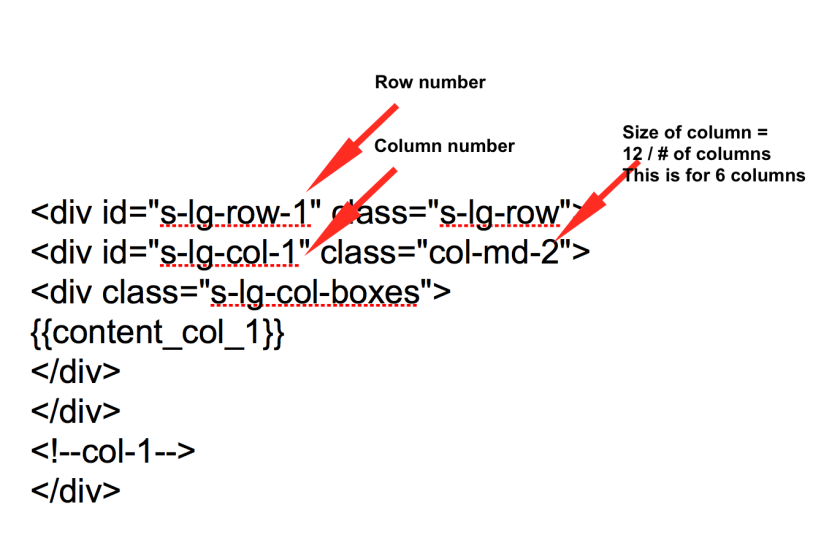
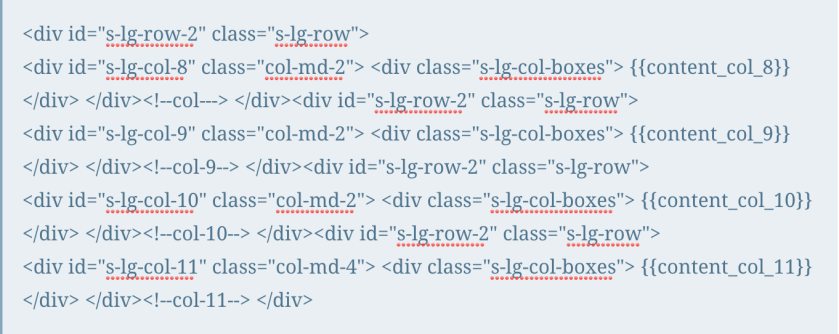
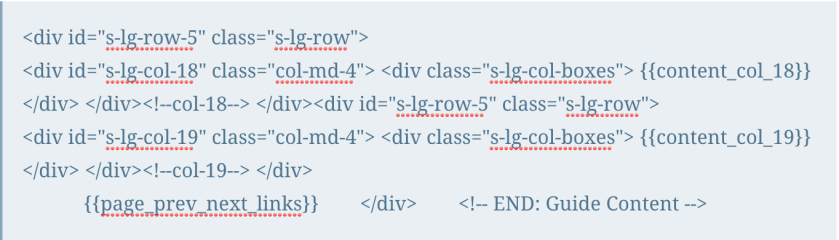
And here it is row by row. My apologies – I wanted it to be easy to copy and paste and originally had it in quote boxes, but WordPress does NOT like you putting bits of code into your posts, so in the end I had to screen shot the relevant bits. And I see I’ve mixed up bits of row 2 in row 1. But I’m sure you’ll get the idea.
Row 1

Row 2
Row 3

Row 4

Row 5
Once you’ve changed the template and uploaded it into your look and feel, you now need to apply it to your guide.
Once again this is done under the “picture” icon on the top right hand side, and this time you choose “guide navigation layout” and from the drop down box choose the template you created.
I’ve shared this template with the community, so you should be able to get the whole template and use and adjust as you want.

WARNING
Please do this all in a test environment with guides that are not live. Things can and do go horribly wrong and I’ve had to be “rescued” on a number of occasions by Springshare due to faulty code wiping out my ability to do anything!


 Informative Flights - Musings of a Teacher Librarian